Unsaved Changes Protection
Cygnus protects your work by automatically prompting you to save unsaved changes before any action that would discard the current workspace state.
When Protection Activates
The save prompt appears when you attempt to:
- Create a new workspace (File > New or Ctrl+N)
- Open another workspace (File > Open, Open Recent, or Ctrl+O)
- Exit the application (File > Exit or close the window)
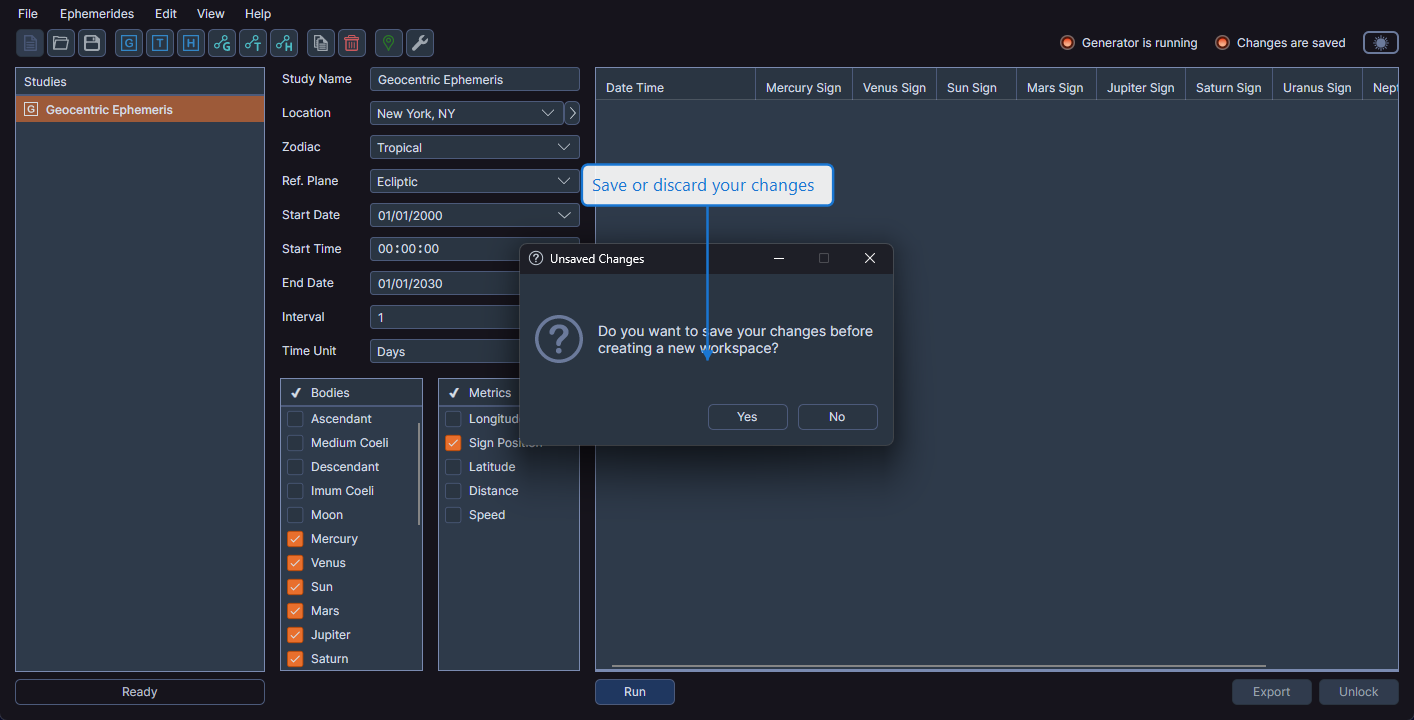
Prompt Options
When the confirmation dialog appears, you have three choices:
- Save -- Saves the current workspace and then proceeds with the requested action
- Discard -- Discards all unsaved changes and proceeds with the action
- Cancel -- Cancels the action and returns you to the current workspace
warning
Choosing Discard permanently removes any unsaved changes, including newly generated ephemeris data. This action cannot be undone.
Identifying Unsaved Changes
You can check whether your workspace has unsaved changes by looking at the status indicators in the upper-right area of the toolbar. The "Changes are saved" indicator shows whether all changes have been persisted.