Open Workspace
Open a previously saved workspace to resume work on your ephemeris studies, including all configurations and generated data.
How to Open a Workspace
You can open a workspace in any of these ways:
- Click the Open button on the toolbar
- Select File > Open from the menu
- Press Ctrl+O (Windows) or Cmd+O (macOS)
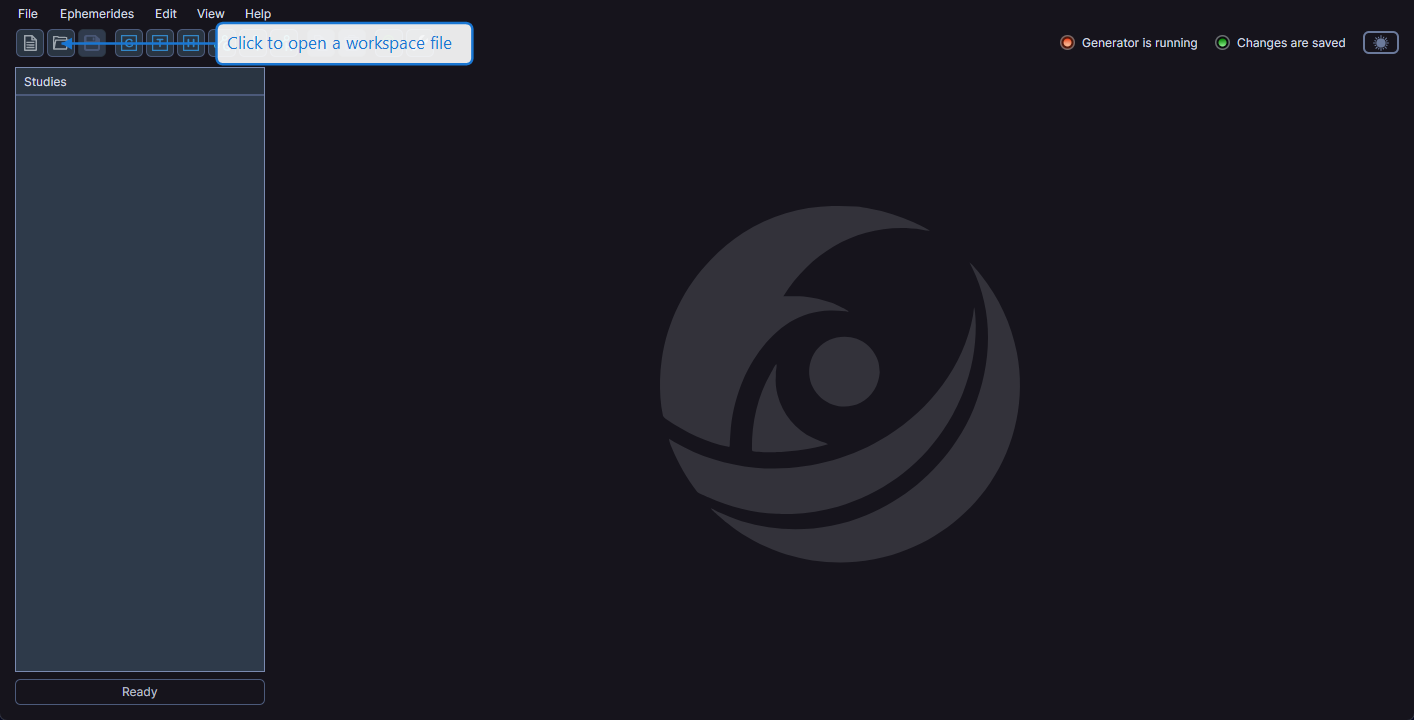
A file dialog appears where you can navigate to and select a .cygnus file.
Unsaved Changes
If your current workspace has unsaved changes, Cygnus prompts you to save before opening a different workspace. You can save, discard, or cancel.
What Gets Restored
When you open a saved workspace, Cygnus restores:
- All studies and their configurations
- Generated ephemeris records (if the study had completed generation before saving)
- Study order and names
- Column visibility and layout customizations for each study's data grid
info
Workspace files use the .cygnus file extension. These files contain all study configurations and generated data in JSON format.