Study Selection and Navigation
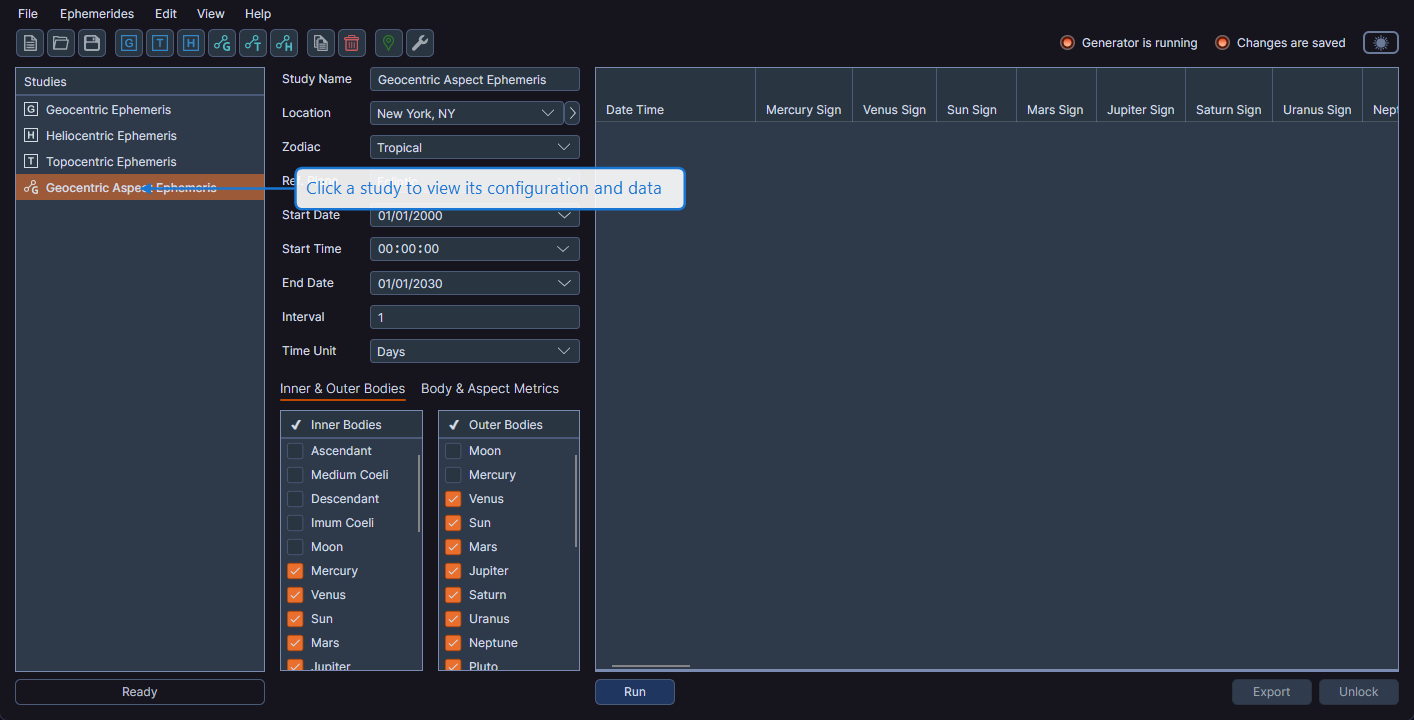
The studies list on the left side of the window is your primary way to navigate between studies. Each study appears with a distinctive icon representing its type and the name you assigned.
Selecting a Study
Click on a study name in the studies list to select it. The study's configuration panel and data grid appear in the main content area on the right side of the window.
Study Type Icons
Each study type has a distinctive icon in the studies list, making it easy to identify at a glance:
- Standard ephemeris studies (Geocentric, Topocentric, Heliocentric) share one icon style
- Aspect ephemeris studies share a different icon style
Resizing the Studies Panel
A GridSplitter between the studies list and the study content area allows you to resize the relative widths of these panels. Drag the divider left or right to adjust the space allocated to each panel.
Empty Workspace
When no study is selected, or when the workspace has no studies, the main content area displays the Cygnus logo as a watermark.