Copy Record Data to Clipboard
Copy record data from the data grid to your clipboard for quick use in other applications, without performing a full CSV export.
How to Copy Data
Right-click on a record row in the data grid to open a context menu with copy options.
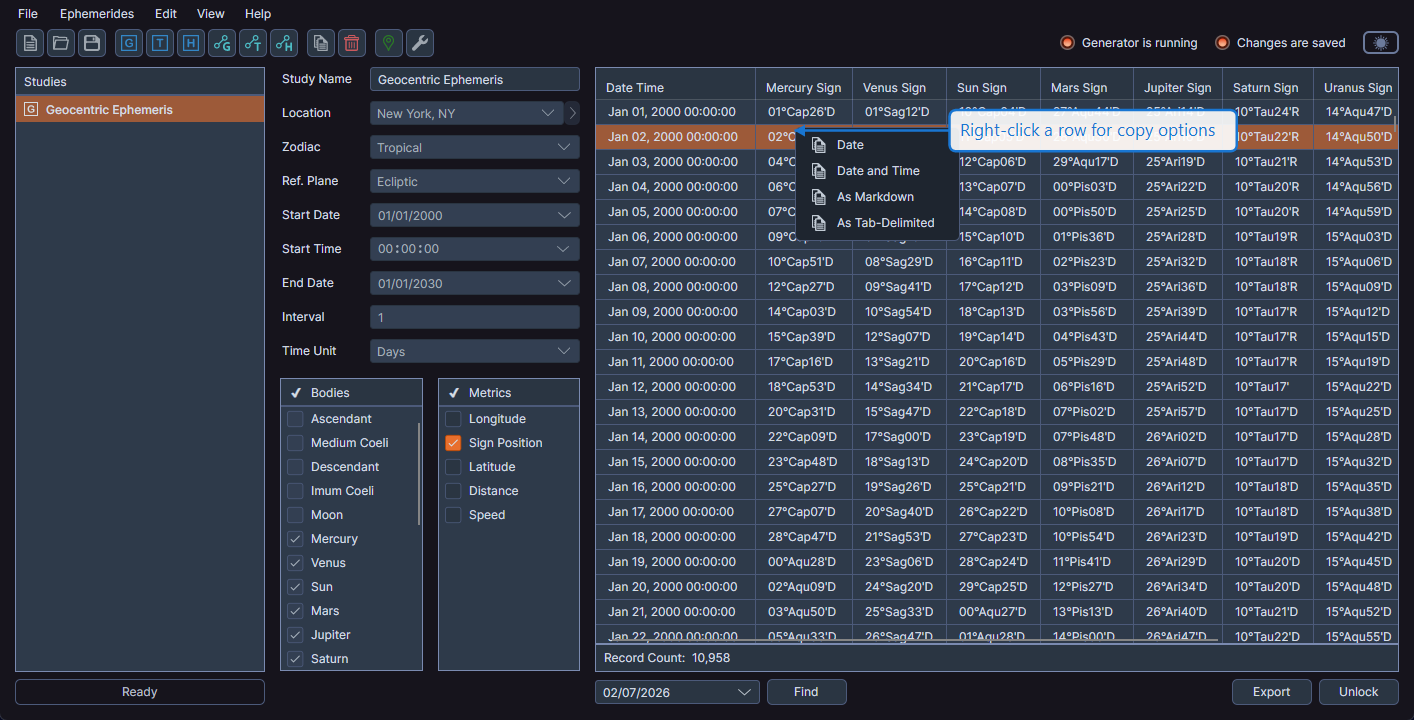
Copy Formats
| Format | Description | Use Case |
|---|---|---|
| Date | Copies only the date of the selected record | Quick date reference |
| Date and Time | Copies the full date and time | Precise timestamp reference |
| As Markdown | Copies selected records as a Markdown-formatted table | Documentation, notes, reports |
| As Tab-Delimited | Copies selected records in tab-separated format | Pasting into spreadsheets |
Multi-Row Selection
You can select multiple rows before copying to include data from several records:
- Hold Ctrl (Windows) or Cmd (macOS) and click to select individual rows
- Hold Shift and click to select a range of rows
The As Markdown and As Tab-Delimited formats include all selected rows. The Date and Date and Time formats copy the data from the right-clicked row.
tip
Use the As Tab-Delimited format to paste multiple records directly into a spreadsheet application. The tab-separated values align automatically with spreadsheet columns.