Body List Presets
Body list presets save celestial body selections for quick reuse across studies. Instead of selecting bodies one by one each time you create a study, you can apply a saved preset to instantly configure the body list.
What Presets Capture
A body list preset stores which celestial bodies are selected in a body list. In aspect ephemeris studies, inner body presets and outer body presets are managed separately.
Accessing Body List Presets
Right-click on any row in the Bodies list to open a context menu. The preset options appear in the lower portion of the menu.
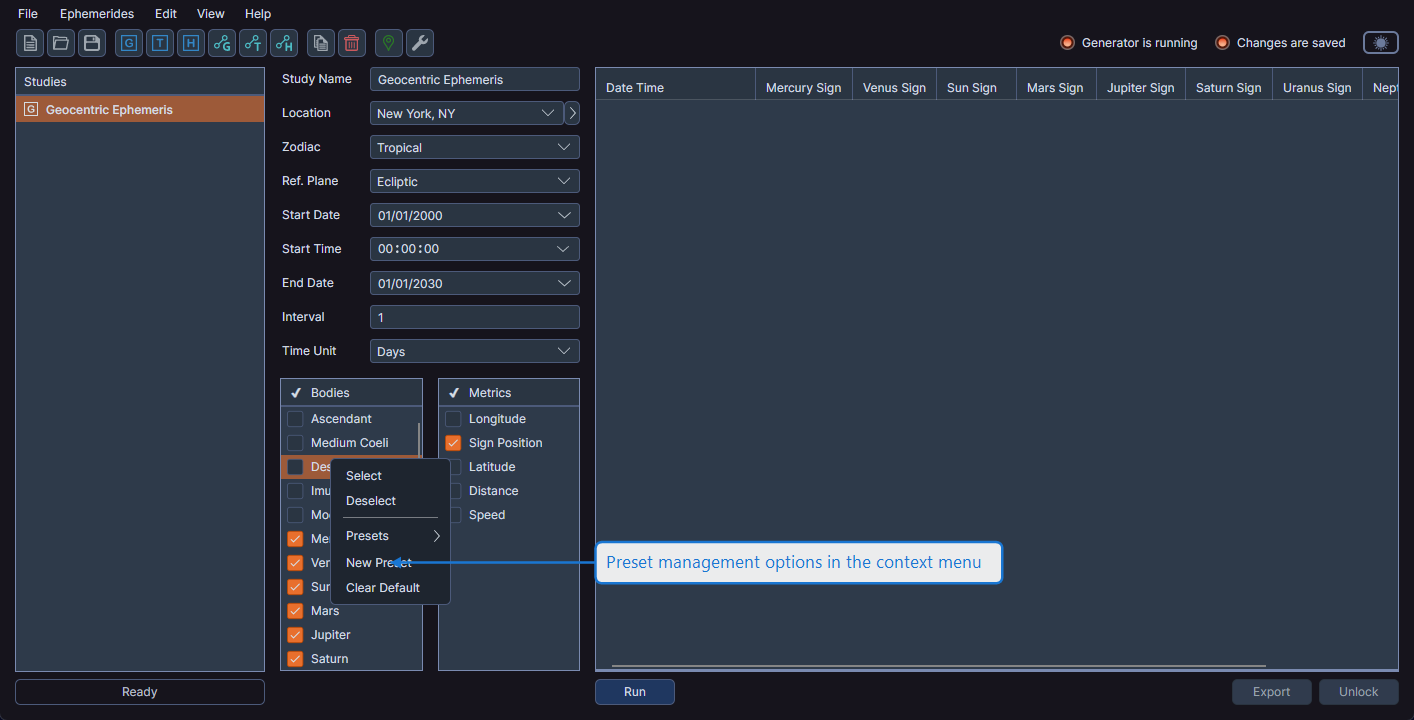
Preset Operations
Create a New Preset
- Select the desired bodies in the list
- Right-click on any row
- Select New Preset from the context menu
- Enter a name for the preset
The preset captures the current body selections.
Apply a Preset
- Right-click on any row in the Bodies list
- Select Presets from the context menu
- Select the preset you want to apply
The body list updates to match the preset's saved selections.
Set a Default Preset
Setting a default preset causes new studies to automatically use the preset's body selections. Select a preset and click Set Default from its options.
Additional Operations
- Rename -- Change the name of an existing preset
- Replace -- Update a preset's saved body selections with the current selections
- Clear Default -- Remove the default preset designation
- Delete -- Permanently remove a preset
Aspect Study Body Presets
In aspect ephemeris studies, body list presets are managed independently for each body list:
- Inner Bodies presets apply to the Inner Bodies list
- Outer Bodies presets apply to the Outer Bodies list
Each list has its own context menu with separate preset options.
Body list presets are shared across all workspaces. Presets you create are available in any workspace you open.